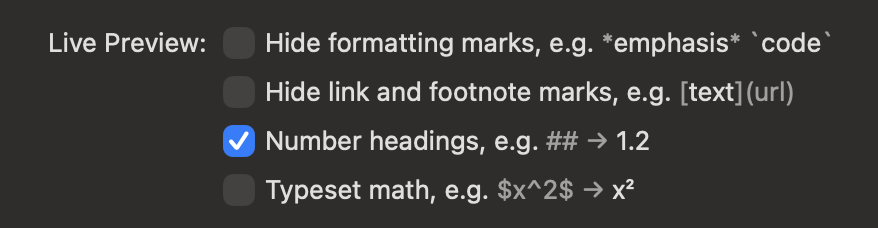
Is there a toggle in WriteRoom shifting between visible and invisible markdown codes? If not, could that be an option for 408 ?
Currently there is only the Settings > Markdown checkboxes. I guess you are asking for a per document toggle a layer on top of this?
Hey Jesse,
I’m new to markdown so bear with me.. I think that what I mean is a toggle WordPerfect used to have and Obsidian has: ‘Click once, you see all the codes, click again you see only the text, preferably with there results of the codes visible’.
Ah, got it, I think.
Typora has a good implementation of this approach. Source mode (shows all syntax) vrs normal mode which renders markdown to simulate a rich text editor view.
I think you might have already found, but if you check these boxes in settings:
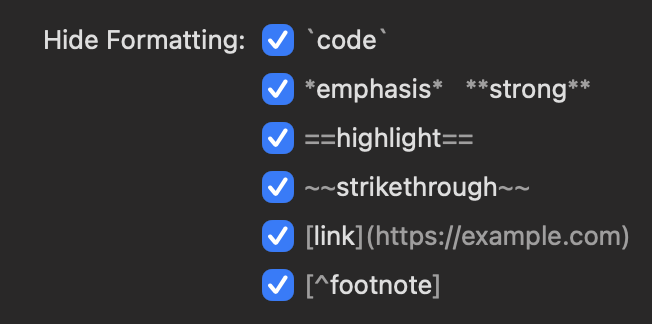
Then I think you’ll come close to the “rendered” mode you describe? (with headings being the only missing part, they render bold, but don’t show different sizes … they will still show #'s)
You are asking for a higher level document specific toggle that turns it all on/off…
I think my existing “Hide Formatting” UI above probably doesn’t make much sense, or is at least too fine grained. I added it mostly for debugging/implementation and then kept it…
I’m curious to hear what anyone else thinks. Would all these fine grained/hide syntax checkboxes be better replaced by a document level toggle?
I rarely find the need to hide just part of markdown syntax. But if you do decide to implement source mode instead of hide/show markdown, consider leaving markdown rendered in source mode as well. Makes it easier to see high-level what’s bold/italic and allow for fine-grained edits.
here’s my use case. I am generating a lot of markdown docs, and i generally just want to read them, which means that i want to view with all ‘Hide Formatting’ options checked (i.e. i don’t want to see the markdown characters). But sometimes i want to edit, which means that i want to have a single button on the window, or a keyboard shortcut, to let me see all the markdown characters.
ah, i see there’s a discussion about this. yes, i want a single toggle
I think I’m heading in this direction but…
And the current “hide syntax” checkboxes are giving you what you want? For example, I’m not generating a HTML preview with super flexible typography and flexibility… I’m just hiding/styling characters in the real editor.
Also, what about headings? Any thoughts on how they should be styled when hiding syntax? Especially DEC theme where there isn’t really flexibility to define 6 full heading styles?
yes, i want to switch back and forth between editing and formatted, just like issues in github, but with one button or keystroke on the window. (Markdown Peek on the mac app store does this, but it doesn’t allow editing)
i’m also quickviewing a lot of md files these days.
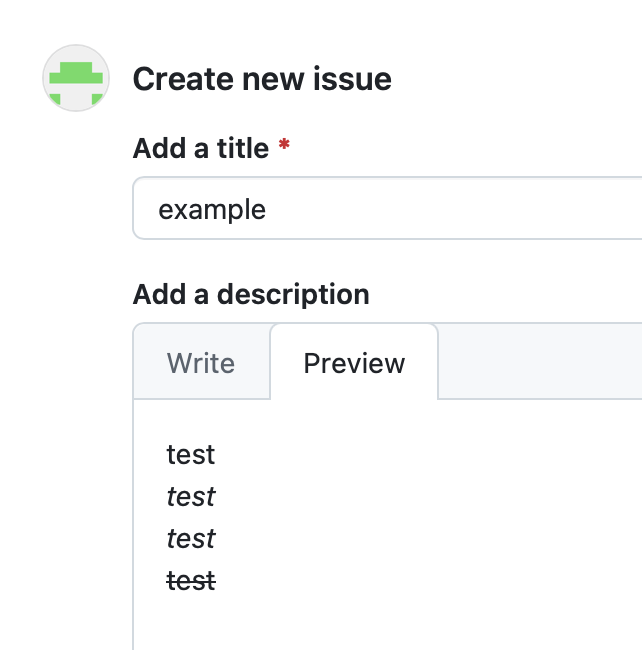
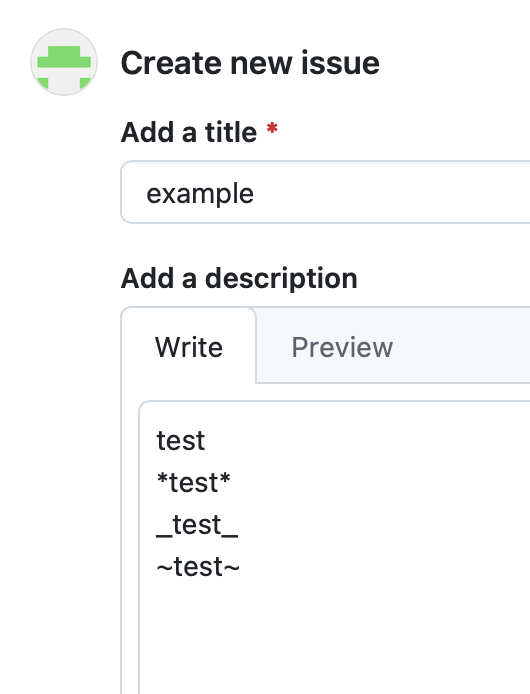
FSNotes uses command-/ to change from edit mode to HTML preview in the same window. This really is a nice feature. It is also possible to have the same note open in two windows for live preview. FSNotes manages to keep its editor-first quality because the preview itself is just a rendered view and can’t be edited and the toggle is instant both ways. But I am not advocating for any particular solution here. It is hard to imagine a Markdown editor without some kind of preview feature, but I also don’t want WriteRoom to lose focus on its writing first approach.
I’ve moved some posts from the release thread here.
I’m learning toward adding a Safari based web preview. I originally didn’t want this, but it’s true pretty much every markdown app has it, so it’s a bit weird to leave it out. This view will be full HTML preview generated from HTML. Not editable.
That leaves some question about what to do with the existing “Hide Formatting:” settings. For me it still makes sense to keep them in some form. I enjoy editing Markdown without seeing all the links unless I’m directly editing them. At the same time:
- It makes two different ways to hide formatting (full html preview, or just these settings)
- Full HTML preview needs a toggle… what about hide formatting options. I’m leaning to no, but am not sure.
Still thinking, but input would be welcome.
(Good news is that I did this winter already implement efficient HTML preview, so that code is done anyway!)
A vote here in favour of preservimg the Hide Formatting settings.
My feeling is that there are plenty of previewers (not least the standalone Marked.app in which you can select or customise CSS) and that WriteRoom works best as a place to focus entirely on writing.
(Appearance can be dealt with elsewhere, and at a different time)
Hey Jesse,
I’m excited to take part in this exercise, this is the first time that I feel I have some influence over a tool that I use on a daily basis.
The MarkUp question comes from the way I start to see WriteRoom.
It used to be the better equipped brother of the Apple text editor. I wrote my text in the distraction free environment, then copied it to Word, Mail or Apple Notes where I did the lay-out, links etc. In the new version I feel I can do more in WriteRoom though I cannot copy the links etc to the Word etc.
I bought this version, the fact that I can keep using it as before in MacOs 27 is already great. It would be even better if I could use it as my standard wordprocessor. A way to save or export to out would be a solution for me.
Does this help you?
Frank
Markdown to MS Word via pandoc works well.
For example, we can obtain
sample.docx.zip (11.3 KB)
from
sample.md.zip (1.4 KB)
Where the contents of sample.md, written in WriteRoom, corresponds to:
Markdown to Word
A well-supported and well-travelled route is via Pandoc.
With homebrew installed, you can get pandoc via the command line incantation:
brew install pandoc
or via Pandoc’s own macOS package installer.
Inline formats should generally[1] transfer well.
- Bold
- Italic
- Highlight
Strikethrough
as should row types and tables
- Ordered lists
- beta
- gamma
- Tasks
- delta
- epsilon
| City | Size |
|---|---|
| Paris | 2m |
| Tokyo | 37m |
If we have saved this file as sample.md to the desktop then we can create a sample.docx from it, using pandoc, as follows:
cd ~/Desktop
pandoc -f markdown+mark sample.md -o sample.docx
open sample.docx
Highlighting is not exported by default, but you just have to specify the output format as
markdown+markrather than simplymarkdown↩︎
I am also +1 on keeping the hide formatting options. For me, WriteRoom is about the distraciton-free writing experience. Being able to write mostly WYSIWYG and not see the formatting is a distinct need from seeing how the HTML layout will look.
Along these lines, I was wondering if WriteRoom could get its own file extension to show its status as a special kind of markdown editor.. It took over the .md extension when I installed it. That is easy enough to change. I don’t think I want it as my primary md viewer, but I do want it to always open files I created in WriteRoom. Would giving the option for a third and distinct file type solve this? Bike files are HTML, but it has an its own extension.
This is very useful, thank you very much. Pandoc offers a browser app which is the next best thing after ‘export to .odt’ in WriteRoom.
This also means that I do not need a toggle and am happy to see the WriteRoom as distracgion-free as possible.
1 Like
How are you using these… ie what granularity do you use? All hide formatting at once, or a specific set?
In writing mode, I will typically hide the four inline formatting options only. If I was in read-only mode, I would be more likely to hide all. This conversation, did make me realize that the power of having a single toggle would mean that there could be a single menu item and keyboard shortcut for this.