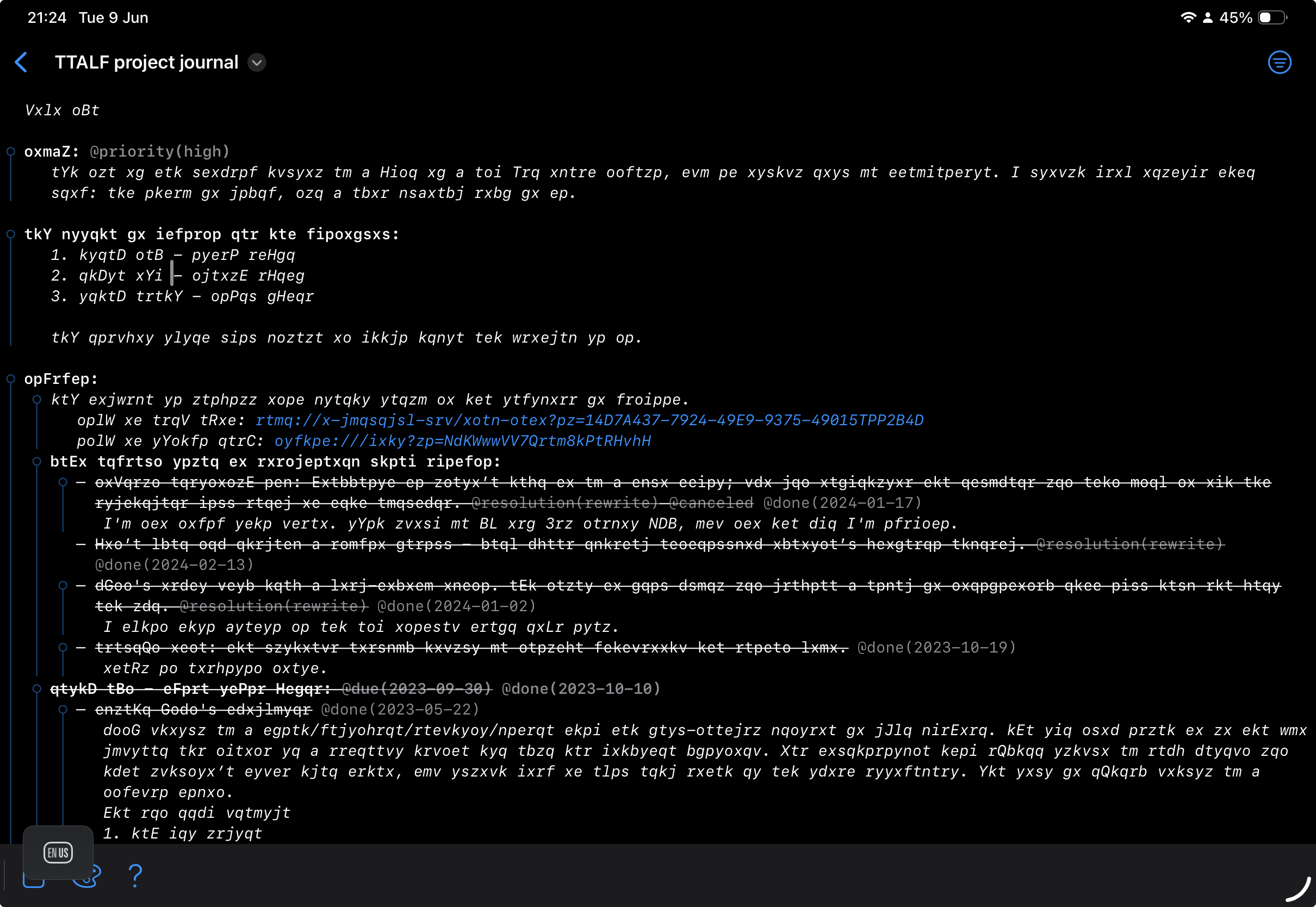
To me sidebar on the right seems like an odd choice. Most note apps I know/use (TaskPaper included) put sidebar on the left. I use iPad with keyboard exclusively and rarely take it out of its harness, so take my feedback with that in mind.
can’t seem to dismiss sidebar with cmd+ctrl+S (but I can with cmd+opt+S)
the visual glitches and jumps are still the vibe killer for me:
when cursor passes empty line, the toolbelt will glitch out frantically (see video).
working at the end of the document is very distracting. Every press of the return key causes the UI to glitch out (also see video).
I know there’s an issue with this in iPadOS where empty lines want to show some kind of toolbar. This seems to fight with the toolbelt on empty lines. But I’m wondering if toolbelt is needed at all when keyboard is attached. I tried removing all items from it, but I still have three icons left, obscured by the language picker (see screenshot below)
It’s configurable in PaperTrail. But it’s currently same side for all side panels.
Sidebar goes on left, and inspector usually goes on right; my thoughts where that adjusting style feels like an inspector behaviour. But now that we’ve multiple panels I do agree that filter makes more sense on left. So I’ll give some thought to how to toggle them. Or maybe I just fix them to the “correct” side?
Thanks for the other issues, will take a look to see what I can do.
It’s true that TaskPaper has the panel for Projects, Saved Searches, and Tags on the left side (which, for example, I wouldn’t mind at all). However, it’s also true that the side panel in TaskPaper remains open after I activate a filter, until I choose to close it manually.
In TaskPaper, it’s also possible to activate multiple filters one after another without having to manually clear the previously applied filter and reopen the side panel each time.
And keep in mind: Not everyone who uses an iPad also uses a keyboard in every situation.
Toggle Toolbelt command to hide the tool belt while a hardware keyboard is connected; the tool belt comes back automatically when the keyboard is detached
Command palette now shows what a toggle command will do, e.g. “Toggle Autocomplete On” or “Toggle Panel Side Left” (Toolbelt, Autocomplete, Sync Debug, Panel Side)
Swipe the filter sidebar left-to-right to dismiss it
change:
iPad: the filter panel is now a real sidebar — the document sits beside it instead of being covered, and stays fully editable while it’s open
iPad: the filter sidebar stays open while you browse, like a contents list — tapping a project, tag, or search swaps the filter in place
The filter sidebar docks on the opposite side to the Style and tool belt panels (filter left, panels right by default); Toggle Panel Side swaps both together
fix:
Tool belt no longer flickers or jumps when the cursor crosses an empty line or when pressing return with a hardware keyboard connected
Show Sidebar Expanded (ctrl-cmd-S) now also closes the sidebar when pressed again
Unfortunately, can’t confirm this fix. There is no flickering when toolbelt is toggled off, but this is what I see with keyboard attached and toolbelt on:
I can confirm that editor scales to make room for sidebar, but I can’t edit document with sidebar open. Caret disappears as soon as sidebar is opened. I can place caret back into editor with cmd+Return (which seems to be the only way to have editor regain focus), and that will generate a new line and respond to tabs, but I cannot type into document or delete.
Other issues:
while sidebar is open, and I invoke Command Palette or Go To with keyboard, I can’t type into text field.
@Gorgonzola can you please provide details of your iPad setup? So I can reproduce. Specifically the thing that is popping up I do not see, how can I enable that?
The whole thing is pretty crazy. With my smaller files, for example “TestOutline” (2 KB), the issue does not occur when opening the file. However, it does occur with my “working file” (20 KB), which I’d rather not post here because it contains personal data.
I’ll try to send you a video file privately by email.
M4 ipad pro w/ Magic Keyboard. That thing popping up in blank lines is probably Writing Tools toolbar. I’m not sure myself, but as far as I can tell it’s an Apple Intelligence thing that works with M-series only. I’ll see if I can disable it and see if that makes any difference.
Yeah, I can confirm: If I turn off Apple Intelligence in System Settings, the Writing Tools bar stops popping up, and I don’t get those glitches anymore with toolbelt on or off. Downside is I have to turn off Apple Intelligence as a whole, I can’t see a dedicated Writing Tools setting.
In the tag-filtered view, I can’t clear the filter using the Esc key. The filter is also not shown in the top search bar with the „x“ to delete it . The only way to remove the tag filter is a right-to-left swipe gesture.
It happens fairly often that when you focus into deeper levels, work there for a while, and then return to the main view, large gaps consisting of blank lines appear between projects.
It’s not easy to reproduce, as I haven’t been able to identify a clear pattern yet.